Choose the installation instructions for your Eclipse IDE version
Find your IDE version in about dialog (Help > About).
- Eclipse 2026-03 4.39
- Eclipse 2022-03 4.23
- Eclipse Oxygen 4.7
- Eclipse 2025-12 4.38
- Eclipse 2021-12 4.22
- Eclipse Neon 4.6
- Eclipse 2025-09 4.37
- Eclipse 2021-09 4.21
- Eclipse Mars 4.5
- Eclipse 2025-06 4.36
- Eclipse 2021-06 4.20
- Eclipse Luna 4.4
- Eclipse 2025-03 4.35
- Eclipse 2021-03 4.19
- Aptana Studio 3
- Eclipse 2024-12 4.34
- Eclipse 2020-12 4.18
- ColdFusion Builder
- Eclipse 2024-09 4.33
- Eclipse 2020-09 4.17
- Flash Builder
- Eclipse 2024-06 4.32
- Eclipse 2020-06 4.16
- JBoss Developer Studio
- Eclipse 2024-03 4.31
- Eclipse 2020-03 4.15
- MyEclipse
- Eclipse 2023-12 4.30
- Eclipse 2019-12 4.14
- Spring Tool Suite
- Eclipse 2023-09 4.29
- Eclipse 2019-09 4.13
- Zend Studio
- Eclipse 2023-06 4.28
- Eclipse 2019-06 4.12
- Rational Application Developer
- Eclipse 2023-03 4.27
- Eclipse 2019-03 4.11
- Servoy Developer
- Eclipse 2022-12 4.26
- Eclipse 2018-12 4.10
- Titanium Studio
- Eclipse 2022-09 4.25
- Eclipse 2018-09 4.9
- Standalone version
- Eclipse 2022-06 4.24
- Eclipse Photon 4.8
- Offline Zip archive
Eclipse 2026-03 (4.39)
1. From within Eclipse open the update manager by selecting Help > Install New Software…
2. Click Add… and enter the following location:
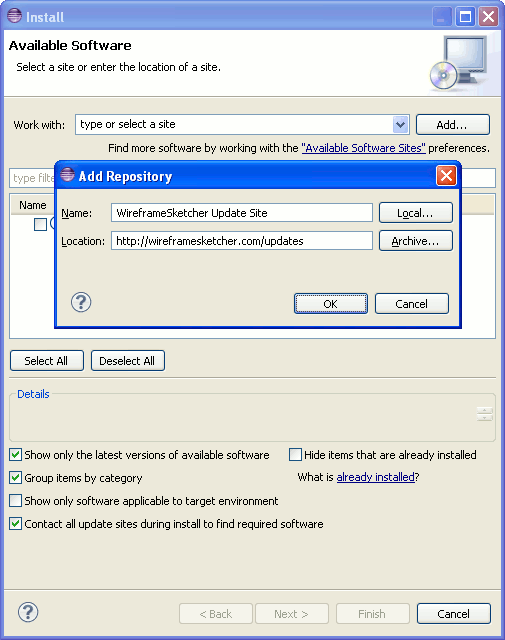
3. Select the WireframeSketcher plug-in and finish the installation.
4. Take a look at the User Guide to get started.
Eclipse 2025-12 (4.38)
1. From within Eclipse open the update manager by selecting Help > Install New Software…
2. Click Add… and enter the following location:
3. Select the WireframeSketcher plug-in and finish the installation.
4. Take a look at the User Guide to get started.
Eclipse 2025-09 (4.37)
1. From within Eclipse open the update manager by selecting Help > Install New Software…
2. Click Add… and enter the following location:
3. Select the WireframeSketcher plug-in and finish the installation.
4. Take a look at the User Guide to get started.
Eclipse 2025-06 (4.36)
1. From within Eclipse open the update manager by selecting Help > Install New Software…
2. Click Add… and enter the following location:
3. Select the WireframeSketcher plug-in and finish the installation.
4. Take a look at the User Guide to get started.
Eclipse 2025-03 (4.35)
1. From within Eclipse open the update manager by selecting Help > Install New Software…
2. Click Add… and enter the following location:
3. Select the WireframeSketcher plug-in and finish the installation.
4. Take a look at the User Guide to get started.
Eclipse 2024-12 (4.34)
1. From within Eclipse open the update manager by selecting Help > Install New Software…
2. Click Add… and enter the following location:
3. Select the WireframeSketcher plug-in and finish the installation.
4. Take a look at the User Guide to get started.
Eclipse 2024-09 (4.33)
1. From within Eclipse open the update manager by selecting Help > Install New Software…
2. Click Add… and enter the following location:
3. Select the WireframeSketcher plug-in and finish the installation.
4. Take a look at the User Guide to get started.
Eclipse 2024-06 (4.32)
1. From within Eclipse open the update manager by selecting Help > Install New Software…
2. Click Add… and enter the following location:
3. Select the WireframeSketcher plug-in and finish the installation.
4. Take a look at the User Guide to get started.
Eclipse 2024-03 (4.31)
1. From within Eclipse open the update manager by selecting Help > Install New Software…
2. Click Add… and enter the following location:
3. Select the WireframeSketcher plug-in and finish the installation.
4. Take a look at the User Guide to get started.
Eclipse 2023-12 (4.30)
1. From within Eclipse open the update manager by selecting Help > Install New Software…
2. Click Add… and enter the following location:
3. Select the WireframeSketcher plug-in and finish the installation.
4. Take a look at the User Guide to get started.
Eclipse 2023-09 (4.29)
1. From within Eclipse open the update manager by selecting Help > Install New Software…
2. Click Add… and enter the following location:
3. Select the WireframeSketcher plug-in and finish the installation.
4. Take a look at the User Guide to get started.
Eclipse 2023-06 (4.28)
1. From within Eclipse open the update manager by selecting Help > Install New Software…
2. Click Add… and enter the following location:
3. Select the WireframeSketcher plug-in and finish the installation.
4. Take a look at the User Guide to get started.
Eclipse 2023-03 (4.27)
1. From within Eclipse open the update manager by selecting Help > Install New Software…
2. Click Add… and enter the following location:
3. Select the WireframeSketcher plug-in and finish the installation.
4. Take a look at the User Guide to get started.
Eclipse 2022-12 (4.26)
1. From within Eclipse open the update manager by selecting Help > Install New Software…
2. Click Add… and enter the following location:
3. Select the WireframeSketcher plug-in and finish the installation.
4. Take a look at the User Guide to get started.
Eclipse 2022-09 (4.25)
1. From within Eclipse open the update manager by selecting Help > Install New Software…
2. Click Add… and enter the following location:
3. Select the WireframeSketcher plug-in and finish the installation.
4. Take a look at the User Guide to get started.
Eclipse 2022-06 (4.24)
1. From within Eclipse open the update manager by selecting Help > Install New Software…
2. Click Add… and enter the following location:
3. Select the WireframeSketcher plug-in and finish the installation.
4. Take a look at the User Guide to get started.
Eclipse 2022-03 (4.23)
1. From within Eclipse open the update manager by selecting Help > Install New Software…
2. Click Add… and enter the following location:
3. Select the WireframeSketcher plug-in and finish the installation.
4. Take a look at the User Guide to get started.
Eclipse 2021-12 (4.22)
1. From within Eclipse open the update manager by selecting Help > Install New Software…
2. Click Add… and enter the following location:
3. Select the WireframeSketcher plug-in and finish the installation.
4. Take a look at the User Guide to get started.
Eclipse 2021-09 (4.21)
1. From within Eclipse open the update manager by selecting Help > Install New Software…
2. Click Add… and enter the following location:
3. Select the WireframeSketcher plug-in and finish the installation.
4. Take a look at the User Guide to get started.
Eclipse 2021-06 (4.20)
1. From within Eclipse open the update manager by selecting Help > Install New Software…
2. Click Add… and enter the following location:
3. Select the WireframeSketcher plug-in and finish the installation.
4. Take a look at the User Guide to get started.
Eclipse 2021-03 (4.19)
1. From within Eclipse open the update manager by selecting Help > Install New Software…
2. Click Add… and enter the following location:
3. Select the WireframeSketcher plug-in and finish the installation.
4. Take a look at the User Guide to get started.
Eclipse 2020-12 (4.18)
1. From within Eclipse open the update manager by selecting Help > Install New Software…
2. Click Add… and enter the following location:
3. Select the WireframeSketcher plug-in and finish the installation.
4. Take a look at the User Guide to get started.
Eclipse 2020-09 (4.17)
1. From within Eclipse open the update manager by selecting Help > Install New Software…
2. Click Add… and enter the following location:
3. Select the WireframeSketcher plug-in and finish the installation.
4. Take a look at the User Guide to get started.
Eclipse 2020-06 (4.16)
1. From within Eclipse open the update manager by selecting Help > Install New Software…
2. Click Add… and enter the following location:
3. Select the WireframeSketcher plug-in and finish the installation.
4. Take a look at the User Guide to get started.
Eclipse 2020-03 (4.15)
1. From within Eclipse open the update manager by selecting Help > Install New Software…
2. Click Add… and enter the following location:
3. Select the WireframeSketcher plug-in and finish the installation.
4. Take a look at the User Guide to get started.
Eclipse 2019-12 (4.14)
1. From within Eclipse open the update manager by selecting Help > Install New Software…
2. Click Add… and enter the following location:
3. Select the WireframeSketcher plug-in and finish the installation.
4. Take a look at the User Guide to get started.
Eclipse 2019-09 (4.13)
1. From within Eclipse open the update manager by selecting Help > Install New Software…
2. Click Add… and enter the following location:
3. Select the WireframeSketcher plug-in and finish the installation.
4. Take a look at the User Guide to get started.
Eclipse 2019-06 (4.12)
1. From within Eclipse open the update manager by selecting Help > Install New Software…
2. Click Add… and enter the following location:
3. Select the WireframeSketcher plug-in and finish the installation.
4. Take a look at the User Guide to get started.
Eclipse 2019-03 (4.11)
1. From within Eclipse open the update manager by selecting Help > Install New Software…
2. Click Add… and enter the following location:
3. Select the WireframeSketcher plug-in and finish the installation.
4. Take a look at the User Guide to get started.
Eclipse 2018-12 (4.10)
1. From within Eclipse open the update manager by selecting Help > Install New Software…
2. Click Add… and enter the following location:
3. Select the WireframeSketcher plug-in and finish the installation.
4. Take a look at the User Guide to get started.
Eclipse 2018-09 (4.9)
1. From within Eclipse open the update manager by selecting Help > Install New Software…
2. Click Add… and enter the following location:
3. Select the WireframeSketcher plug-in and finish the installation.
4. Take a look at the User Guide to get started.
Eclipse Photon (4.8)
1. From within Eclipse open the update manager by selecting Help > Install New Software…
2. Click Add… and enter the following location:
3. Select the WireframeSketcher plug-in and finish the installation.
4. Take a look at the User Guide to get started.
Eclipse Oxygen (4.7)
1. From within Eclipse open the update manager by selecting Help > Install New Software…
2. Click Add… and enter the following location:
3. Select the WireframeSketcher plug-in and finish the installation.
4. Take a look at the User Guide to get started.
Eclipse Neon (4.6)
1. From within Eclipse open the update manager by selecting Help > Install New Software…
2. Click Add… and enter the following location:
3. Select the WireframeSketcher plug-in and finish the installation.
4. Take a look at the User Guide to get started.
Eclipse Mars (4.5)
1. From within Eclipse open the update manager by selecting Help > Install New Software…
2. Click Add… and enter the following location:
3. Select the WireframeSketcher plug-in and finish the installation.
4. Take a look at the User Guide to get started.
Eclipse Luna (4.4)
1. From within Eclipse open the update manager by selecting Help > Install New Software…
2. Click Add… and enter the following location:
3. Select the WireframeSketcher plug-in and finish the installation.
4. Take a look at the User Guide to get started.
Aptana Studio 3
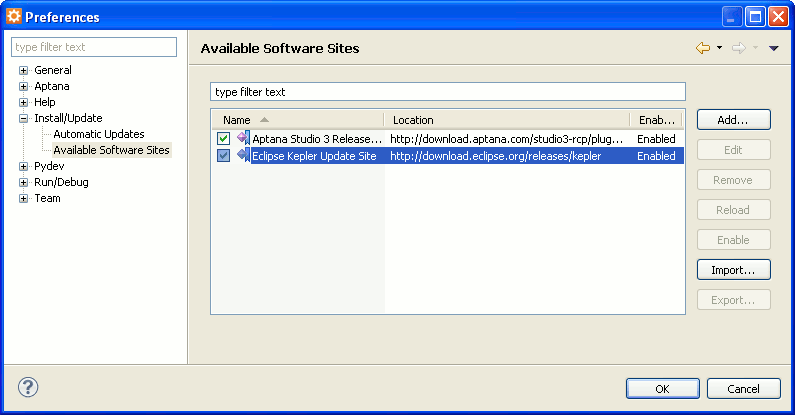
1. Enable Kepler update site using Window > Preferences > Install/Update > Available Software Sites:
2. From within Aptana open the update manager by selecting Help > Install New Software…
3. Click Add… and enter the following location:
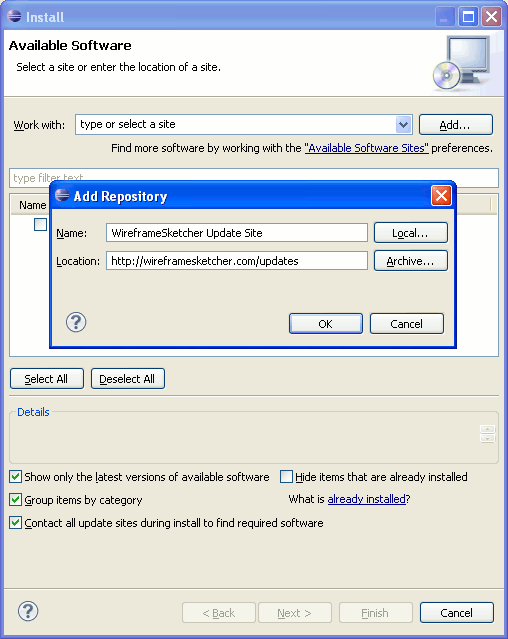
4. Select the WireframeSketcher plug-in and finish the installation.
5. Take a look at the User Guide to get started.
Titanium Studio
1. Enable Kepler update site using Window > Preferences > Install/Update > Available Software Sites
2. From within Titanium Studio open the update manager by selecting Help > Install New Software…
3. Click Add… and enter the following location:
4. Select the WireframeSketcher plug-in and finish the installation.
5. Take a look at the User Guide to get started.
MyEclipse
1. From within MyEclipse open the update manager by selecting Help > Install from Site…
2. Click Add… and enter the following location:
3. Select the WireframeSketcher plug-in and finish the installation.
4. Take a look at the User Guide to get started.
Flash Builder
1. From within Flash Builder open the update manager by selecting Help > Install New Software…
2. Click Add… and enter the following location:
3. Select the WireframeSketcher plug-in and finish the installation.
4. Take a look at the User Guide to get started.
JBoss Developer Studio
1. From within JBoss Developer Studio open the update manager by selecting Help > Install New Software…
2. Click Add… and enter the following location:
3. Select the WireframeSketcher plug-in and finish the installation.
4. Take a look at the User Guide to get started.
ColdFusion Builder
1. From within ColdFusion Builder open the update manager by selecting Help > Install New Software…
2. Click Add… and enter the following location:
3. Select the WireframeSketcher plug-in and finish the installation.
4. Take a look at the User Guide to get started.
Spring Tool Suite
1. From within Spring Tool Suite open the update manager by selecting Help > Install New Software…
2. Click Add… and enter the following location:
3. Select the WireframeSketcher plug-in and finish the installation.
4. Take a look at the User Guide to get started.
Zend Studio
1. From within Zend Studio open the update manager by selecting Help > Install New Software…
2. Click Add… and enter the following location:
3. Select the WireframeSketcher plug-in and finish the installation.
4. Take a look at the User Guide to get started.
Rational Application Developer
1. From within RAD open the update manager by selecting Help > Install New Software…
2. Click Add… and enter the following location:
3. Select the WireframeSketcher plug-in and finish the installation.
4. Take a look at the User Guide to get started.
Servoy Developer
1. From within Servoy Developer open the update manager by selecting Help > Install New Software…
2. Click Add… and enter the following location:
3. Select the WireframeSketcher plug-in and finish the installation.
4. Take a look at the User Guide to get started.
Standalone version
1. Download standalone WireframeSketcher for your operating system:
- Download for Windows (127 MB)
- Download for Windows (Arm64) (125 MB)
- Download for Mac OS X (Apple Silicon) (131 MB)
- Download for Mac OS X (Intel) (132 MB)
- Download for Ubuntu/Debian (129 MB)
- Download for Ubuntu/Debian (Arm64) (128 MB)
- Download for Fedora/openSUSE (134 MB)
- Download for Fedora/openSUSE (Arm64) (133 MB)
- Download for Linux (134 MB)
- Download for Linux (Arm64) (133 MB)
- Install as Flatpak App via Flathub
2. To install WireframeSketcher on Windows just run the installer after download. On Ubuntu/Debian install the package and then go to Applications > Graphics. On Mac OS X simply extract the archive to your location of choice and then run the app.
3. Take a look at the User Guide to get started.
Offline Zip archive
1. Download the WireframeSketcher plug-in:
2. From within Eclipse open the update manager by selecting Help > Install New Software…
3. Click Add… button and then Archive…
4. In the opened file chooser find and select the downloaded zip archive
5. Select the WireframeSketcher plug-in and finish the installation
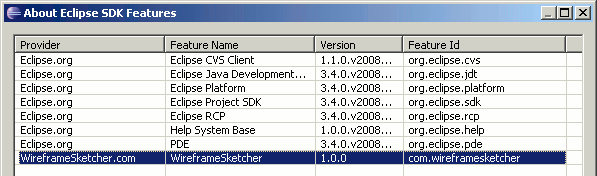
6. Restart Eclipse and check that WireframeSketcher is properly installed. To do so, open Help > About > Installed Software > Features and you should be able to see WireframeSketcher plug-in as shown:
7. Take a look at the User Guide to get started.