Hello everyone!
Today’s release adds native support for Windows Arm64 machines, updates to Eclipse 4.35 platform, and includes HiDPI improvements and bug fixes. Read on for more details.
Windows Arm64 version
Windows has traditionally run on machines that are powered by x86 / x64 processors, but more recently, it also runs on devices powered by Arm processors. These processors offer devices longer battery life while offering great performance.
Today’s release brings a version of WireframeSketcher with native support for Windows Arm64 machines, this way delivering on its promise of a true cross-platform native application. You can now use WireframeSketcher on these devices without compromising the performance nor the battery life.
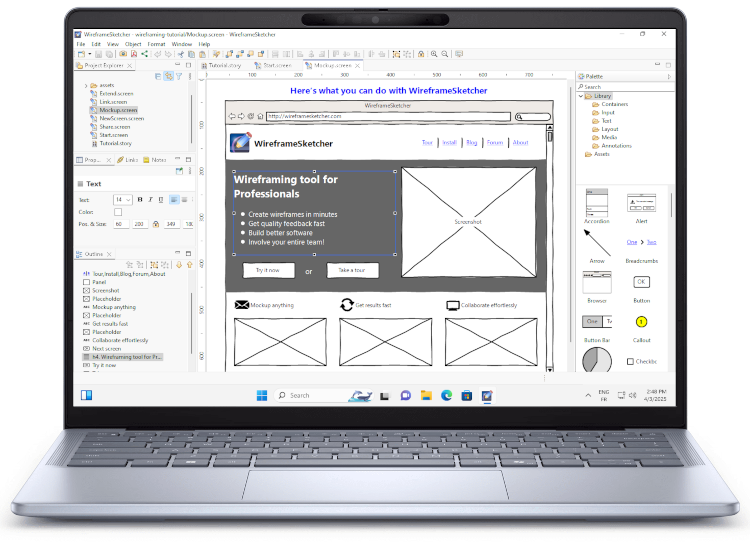
To get this version make sure you choose the Download for Windows (Arm64) version on WireframeSketcher download page.
Please note that this is the first release of Windows Arm64 version so if you encounter any issues please report them back to us!
Eclipse 4.35 support
The newest release of Eclipse 4.35, also known as Eclipse 2025-03, was recently released. We’ve updated the standalone version of WireframeSketcher to this more recent platform so that you can benefit from various improvements and bug-fixes. The plug-in version of WireframeSketcher now is also compatible with Eclipse 2025-03.
Other changes
- Improved/Fixed vertical ruler rendering on HiDPI displays
- Fixed update issue on Windows introduced in version 7.2.2
- Fixed icons view in Icons Dialog on HiDPI displays on Windows
Updating
To update to the latest version of WireframeSketcher use Help > Check for Updates, or just download it from our website. Windows users that use version 7.2.2 should download and install the latest version manually due to an update bug introduced in the previous version.
The version number of this release is 7.3.0
Enjoy!
Hello everyone!
Today’s release brings a new way to install WireframeSketcher on Linux via Flathub, updates to Eclipse 4.34 platform, and includes icon stencil updates and bug-fixes. Read on for more details.
Installing as Flatpak app via Flathub
One of the core features of WireframeSketcher is that it’s a true cross-platform native application. Supporting Linux platform properly always was a time consuming task, but despite this we’ve made sure that Linux is well supported by WireframeSketcher.
This release adds another level of support for Linux by offering a distribution independent way to install WireframeSketcher on any Linux version that supports Flatpak. Some distributions like Fedora, elementary OS, Linux Mint and others come with built-in support for Flatpak. For other distributions Flatpak can be enabled by following its setup instructions.
Another advantage of installing Flatpak version of WireframeSketcher is that it can be done as a non-root user, and still takes care correctly of the system dependencies at the same time.
Flatpak version of WireframeSketcher can be installed from the Flathub App Store.
Note that the Flatpak version of WireframeSketcher has one limitation which for now prevents the correct installation of additional Eclipse plugins. If you need to use additional plugins with WireframeSketcher then we advise to keep using the native Linux version. Note that you can always safely switch between native and Flatpak versions of WireframeSketcher without affecting your data.
Eclipse 4.34 support
The newest release of Eclipse 4.34, also known as Eclipse 2024-12, was recently released. We’ve updated the standalone version of WireframeSketcher to this more recent platform so that you can benefit from various improvements and bug-fixes. The plug-in version of WireframeSketcher now is also compatible with Eclipse 2024-12.
Other changes
- Updated Font Awesome icons stencil to version 6.7.2
- Fixed splash screen image displacement on macOS
- Fixed the error occurring when closing screen editor with two Properties views
Updating
To update to the latest version of WireframeSketcher use Help > Check for Updates, or just download it from our website.
The version number of this release is 7.2.2
Enjoy!
Hello everyone!
Today’s release brings support for the latest macOS Sequoia, updates to Eclipse 4.33 platform. Read on for more details.
Support for macOS Sequoia
This release adds support for the latest version of macOS – Sequoia. Note that since WireframeSketcher app is not part of the Mac App Store you might need to follow these steps to install it.
Eclipse 4.33 support
The newest release of Eclipse 4.33, also known as Eclipse 2024-09, was just released. We’ve updated the standalone version of WireframeSketcher to this more recent platform so that you can benefit from various improvements and bug-fixes. The plug-in version of WireframeSketcher now is also compatible with Eclipse 2024-09.
Updating
To update to the latest version of WireframeSketcher use Help > Check for Updates, or just download it from our website.
The version number of this release is 7.2.1
Enjoy!
Hello everyone!
Today’s release brings support for the most recent Linux versions, updates to Eclipse 4.32 platform, and includes a few icon stencil updates and bug-fixes. Read on for more details.
Support for recent Linux versions
This release adds support for the most recent Linux versions, in particular:
- Ubuntu 24.04
- Fedora Workstation 40
- openSUSE Tumbleweed
Debian and RPM packages for WireframeSketcher were updated to support the most recent dependencies bundled with most recent Linux versions. This means that these packages will also work on other distributions like Pop!_OS, Linux Mint, Manjaro, CentOS Stream and others.

Eclipse 4.32 support
The newest release of Eclipse 4.32, also known as Eclipse 2024-06, was just released. We’ve updated the standalone version of WireframeSketcher to this more recent platform so that you can benefit from various improvements and bug-fixes. The plug-in version of WireframeSketcher now is also compatible with Eclipse 2024-06.

Other changes
- Updated Font Awesome icons stencil to version 6.6.0
Updating
To update to the latest version of WireframeSketcher use Help > Check for Updates, or just download it from our website.
The version number of this release is 7.2.0
Enjoy!
Hello everyone!
Today’s release brings support for the latest release of Eclipse 4.31, and includes a few icon stencil updates and bug-fixes. Read on for more details.
Eclipse 4.31 support
The newest release of Eclipse 4.31, also known as Eclipse 2024-03, was just released. We’ve updated the standalone version of WireframeSketcher to this more recent platform so that you can benefit from various improvements and bug-fixes. The plug-in version of WireframeSketcher now is also compatible with Eclipse 2024-03.
Eclipse 4.30 support
We’ve also added support for Eclipse 4.30, also known as Eclipse 2023-12. Due to some issues present in this version of Eclipse we’ve held back on releasing WireframeSketcher version based on it. However if required, you can use the plug-in version of WireframeSketcher with Eclipse 2023-12.
Other changes
- Updated Font Awesome icons stencil to version 6.5.1
Updating
To update to the latest version of WireframeSketcher use Help > Check for Updates, or just download it from our website.
The version number of this release is 7.1.0
Enjoy!